CI/CD for Google Cloud Build and Cloud Compute Engine
This article is about building a CI or CD pipeline with only a Github repo, Cloud Build and pushing the image to a Google Cloud Compute Engine.
Agenda steps involved:
- GitHup Source code
- Example CloudBuild.yaml in GitHub repo.
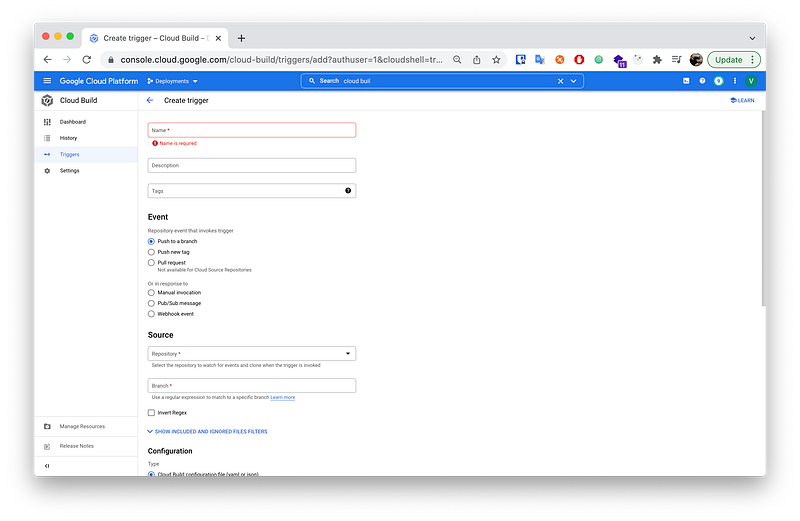
- Create a trigger.
- Explanation of the last Cloud step inside of the CloudBuild.yaml.
- Create the cloud compute engine instance group.
Content:
1.Host your code on GitHub source code.
Just have your source code on a git repository to access it with google cloud build.
2.Upload the following example CloudBuild.yaml to your GitHub Repo.
steps:
  - name: gcr.io/cloud-builders/docker
    entrypoint: 'bash'
    args: ['-c', 'docker build -t gcr.io/$PROJECT_ID/app-backend:$SHORT_SHA -t gcr.io/$PROJECT_ID/app-backend:latest .']
  - name: "gcr.io/cloud-builders/docker"
    args: ["push", "gcr.io/$PROJECT_ID/app-backend"]
  - name: "gcr.io/cloud-builders/gcloud"
    entrypoint: "/bin/bash"
    args:
      ['-c','for i in $(gcloud compute instances list --filter NAME~"app-backend-instance-group" --format="value(NAME)");do gcloud beta compute instances update-container $i --zone europe-west3-c --container-image=gcr.io/$PROJECT_ID/app-backend:latest;done',]
images:
  - 'gcr.io/$PROJECT_ID/app-backend:$SHORT_SHA'
  - 'gcr.io/$PROJECT_ID/app-backend:latest'
timeout: 3600s
options:
  logging: CLOUD_LOGGING_ONLY
3.Create a Google Cloud Trigger.
4.Explanation of the last Cloud step inside of the CloudBuild.yaml
We are talking about this step here:
- name: "gcr.io/cloud-builders/gcloud"
    entrypoint: "/bin/bash"
    args:
      ['-c','for i in $(gcloud compute instances list --filter NAME~"app-backend-instance-group" --format="value(NAME)");do gcloud beta compute instances update-container $i --zone europe-west3-c --container-image=gcr.io/$PROJECT_ID/app-backend:latest;done',]
Use the last cloud build step to create the docker image and push the new image to Google Artefact image repository. Here is a short explanation of the last execution step. For the construction we used the following commands:
Get all instance from a instance group:
gcloud compute instances list --filter NAME~"app-backend-instance-group"
Get all instance from a instance group with only the name:
gcloud compute instances list --filter NAME~"app-backend-instance-group" | grep NAME
Upload/Update a instance with a new container image for example Docker:
gcloud beta compute instances update-container app-backend-instance-group-xq3w --zone europe-west3-c --container-image=gcr.io/deployments-337523/app-backend:latest
As a shell script the hole content would look like this:
#!/bin/bash
for i in $(gcloud compute instances list --filter NAME~"app-backend-instance-group" --format="value(NAME)");
do
gcloud beta compute instances update-container $i --zone europe-west3-c --container-image=gcr.io/deployments-337523/app-backend:latest;
done
Now lets put everything together in a bash command or step for the cloudbuild.yaml:
for i in $(gcloud compute instances list --filter NAME~"app-backend-instance-group" --format="value(NAME)”);do gcloud beta compute instances update-container $i --zone europe-west3-c --container-image=gcr.io/deployments-337523/app-backend:latest;done
This command tells the instance group to update the container image to the new one, which we pushed to the registry.
5.Create the cloud compute engine instance group.
For this step we are going to create a group, which then contains our instances. For now we can follow the standard procedure outlined by google. The only important part is when we are asked for the instance template we should select the bath of the docker image. Here an example:
Google cloud asks you for a Google container image:
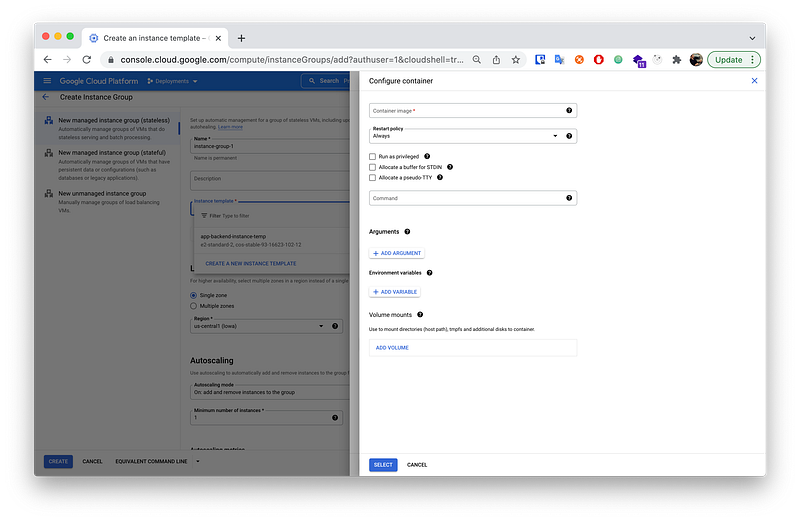
This we can find on the container registry of google.
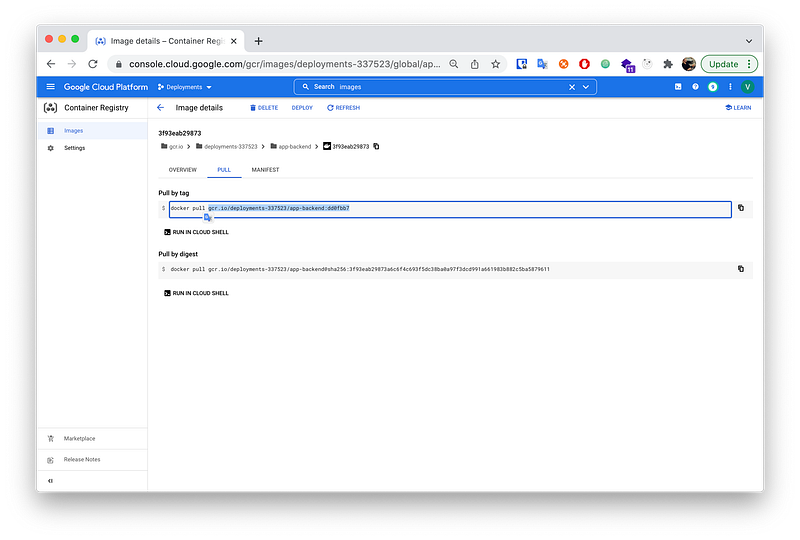
Now we can use the found path docker pull gcr.io/deployments-337523/app-backend:latest for the deployment. For this we just need to copy the path into the previous instance template:
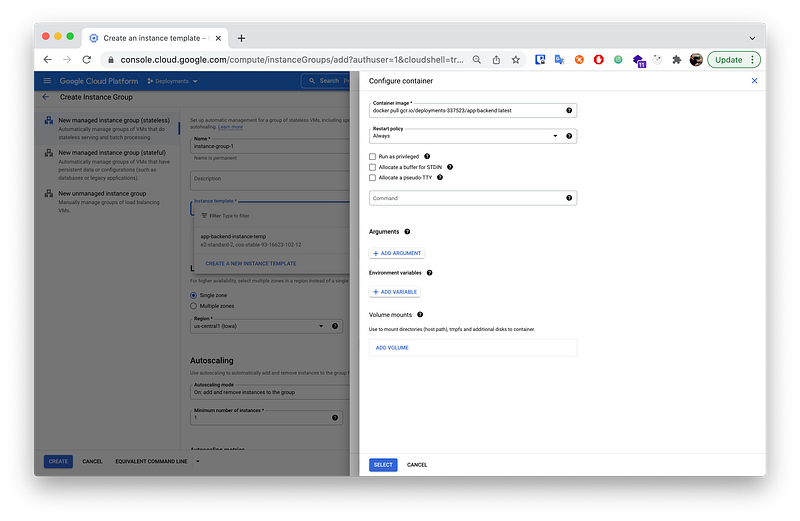
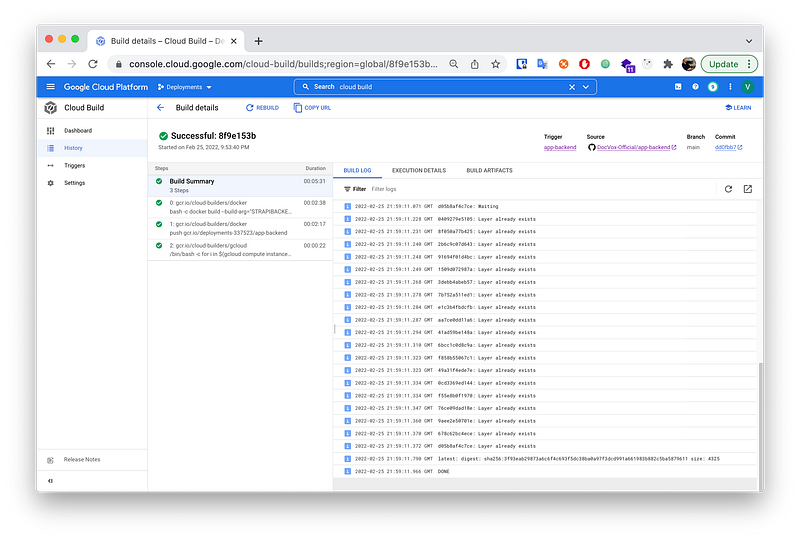
Now if we push some code to the main branch of our git repository the trigger should be executed, the docker build and an new images should be created and lastly the cloud compute engines should be updates. Let us see in the cloud build if the trigger is successful.
Here we see the build is complete and the instances are updated. Everything looks good.
I hope the article helped. Happy coding!